How to auto-reply to DMs on Discord
Learn how to enable Discord DM auto-replies in Autosender, personalize replies, build multi-message follow-ups, wait for a response, and configure advanced controls.
Published on July 14, 2026
An automatic DM reply helps you respond quickly when someone contacts you while you are away, busy, or simply unable to answer immediately. Instead of leaving the person waiting, Autosender can acknowledge the DM, ask how you can help, and continue after they reply.
This guide covers Autosender's Auto-Reply feature: enabling it in a campaign, writing one or more replies, waiting for the other person before continuing, and configuring the advanced controls that determine when the sequence should run.
Before you begin: Use auto-replies only for conversations people start with your account. Keep the messages relevant, make it easy for someone to end the conversation, and review the sequence yourself before running it on a live campaign.
What Auto-Reply does
Auto-Reply sends predefined messages when someone DMs the Discord account connected to a running Autosender campaign. It is a good fit for consistent first responses and simple follow-up flows that do not need AI-generated text.
You can use it to:
- Send one immediate acknowledgement
- Personalize text with the person's display name or username
- Add multiple messages in a fixed order
- Wait for the person to reply before sending the next message
- Skip the remaining messages when a response never arrives
- Limit replies to DMs that contain specific keywords or phrases
Auto-Reply is available on Plus, Pro, and Ultra plans. It is separate from AI Conversation, which generates replies dynamically.
What you need
Before opening the editor, make sure you have:
- A Discord account connected to Autosender
- A Plus, Pro, or Ultra plan
- A campaign that uses the account you want to monitor for DMs
- The first response you want every matching conversation to receive
- Any follow-up messages, delays, or keywords you plan to use
If you are creating a new campaign, configure its name, Discord account, outgoing message, schedule, and target channels first. Auto-Reply is added inside that campaign's Advanced Settings.
1. Open the campaign's Advanced Settings
From the Dashboard, either click Create Campaign or open an existing campaign for editing. Confirm that the correct Discord account is selected, then scroll to the bottom of the campaign editor and expand Advanced Settings.
Inside the advanced feature list, find Auto-Reply. The row is labeled Reply to DMs and shows the plans that include it.
2. Enable Auto-Reply and write the first message
Turn on the Auto-Reply switch. A Message Content field will appear directly below it.
Write a short response that sounds natural in a Discord DM. A good opening reply should:
- Acknowledge the person quickly.
- Set an honest expectation about when you can respond.
- Keep the tone casual and easy to understand.
Autosender also supports these personalization variables:
{mention}pings the person{username}inserts their Discord username{display}inserts their display name
For example:
hey, I'm not at my computer right now.
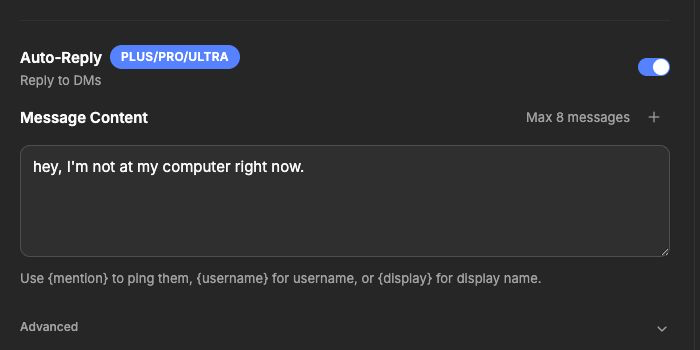
Turn on Auto-Reply and start with a short, honest message that sets expectations.
3. Add multiple auto-reply messages
To turn one acknowledgement into a short follow-up sequence, click the plus button beside the message limit. Autosender will change the editor into numbered messages.
Each added step has its own message field. Keep every message focused on one job:
- Message 1: Let the person know you are currently away.
- Message 2: Ask what they need help with.
- Later messages: Respond only when the conversation has enough context.
For the first transition, leave Wait for their reply off. Set Wait after message to a short delay, such as two seconds. Autosender will send Message 2 automatically after that delay.
Message 1: hey, I'm not at my computer right now.
Message 2: how can I help you?
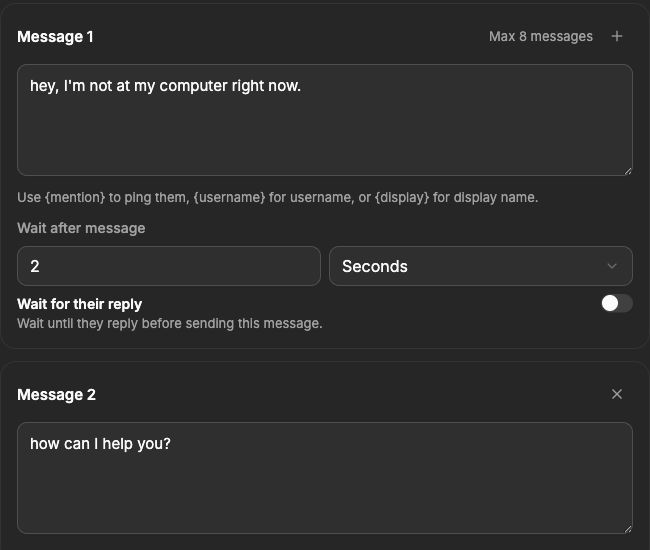
With the toggle off, the two-second timer starts as soon as Message 1 is sent, then Message 2 follows automatically.
4. Wait for their reply before continuing
Between two messages, Autosender shows a delay and a Wait for their reply switch. Turn it on when the next message would only make sense after the person answers.
In this example, Messages 1 and 2 are sent automatically. Message 3 is the reply-gated step:
- Add a third auto-reply message.
- Under Message 2, turn on Wait for their reply.
- Set the Wait after their reply delay. This controls how long Autosender waits after the response arrives before continuing.
- Write Message 3 as the reply-gated follow-up.
I understand, I'll let you know when I'm available.
The sequence now sends the away message, waits two seconds, and asks how it can help. It then stops until the person replies, waits another two seconds, and sends Message 3.
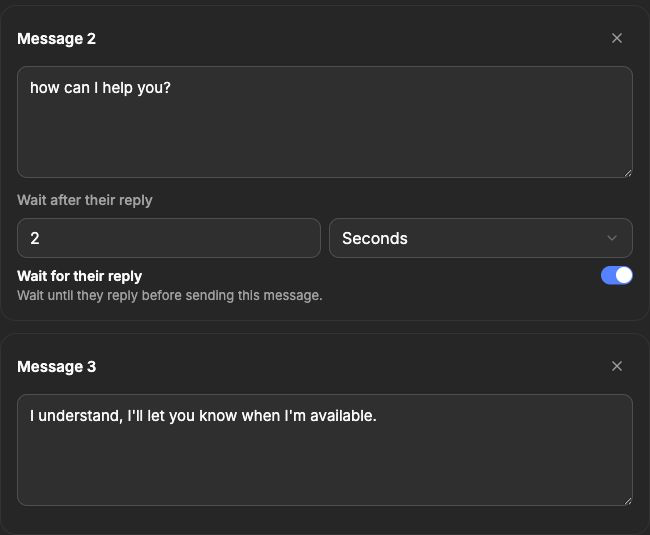
Message 3 is held until the person replies to Message 2. The two-second delay starts after that reply.
Wait after a message or wait after a reply?
Leave Wait for their reply off when the next message should be sent automatically after a fixed delay. Turn it on when continuing without an answer would feel out of context.
In practice:
- An away message followed by “how can I help you?” can use Wait after message.
- A response that acknowledges what the person asked should use Wait for their reply.
5. Configure the Auto-Reply advanced controls
Expand Advanced directly beneath the auto-reply message sequence. These settings control the timing and eligibility of the flow.
Initial Reply Delay
This is the pause before Autosender sends Message 1. Use it to avoid an unnaturally instant response while still acknowledging the DM promptly.
Give Up If No Reply After
This option appears when at least one step uses Wait for their reply. If the person does not respond before the timeout, Autosender skips the remaining messages instead of leaving the sequence waiting forever.
Backfill DM Requests on Start
When enabled, starting the campaign sends one reply to existing pending DM requests using the current auto-reply settings. Leave it off when the campaign should handle only new requests after it starts.
Single Responder
Use this when more than one connected account could encounter the same person. If that person already received an auto-reply from one account, the other accounts will not reply again. Campaigns can share the same optional group when they should use the same single-responder boundary.
Require Specific Keywords
Enable this when the reply should run only for relevant DMs. Add one keyword or phrase per line. Matching is case-insensitive, so a short list such as help, question, and support can keep unrelated conversations out of the flow.
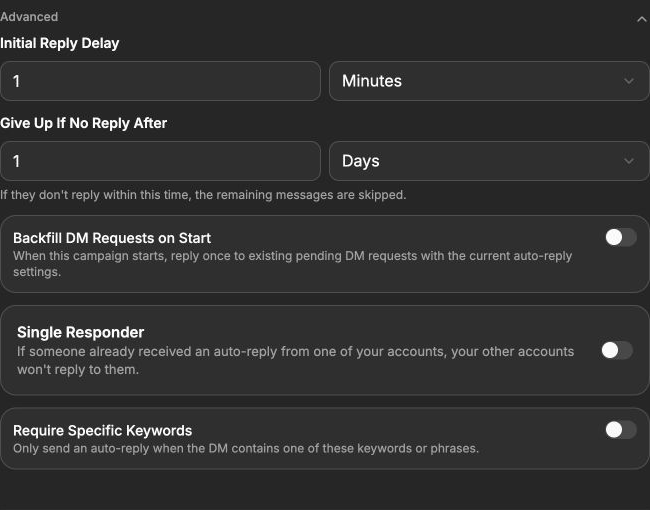
The no-reply timeout is tied to reply-gated sequences; the remaining controls decide which DM requests should receive the flow.
6. Save, start, and test the campaign
Before saving, review the complete campaign rather than only the auto-reply section:
- The intended Discord account is selected.
- The outgoing campaign message and target channels are correct.
- Auto-Reply is enabled.
- Every reply message has been proofread.
- Delays use the intended time units.
- Reply-gated steps have a sensible no-reply timeout.
- Keyword and backfill settings match the conversations you want to include.
Click Create Campaign for a new campaign or Save Changes when editing. Return to the dashboard and click Start Campaign.
Test with one controlled DM before relying on the sequence. Confirm Message 1, the automatic delay, Message 2, the reply gate, the post-reply delay, and Message 3 all behave in the order you intended.
Troubleshooting
Auto-Reply is unavailable
Auto-Reply requires a Plus, Pro, or Ultra plan. Check the badge beside the feature and confirm the current subscription supports it.
The campaign is running but DMs receive no reply
Confirm that Auto-Reply is still enabled and the correct Discord account is connected. If Require Specific Keywords is on, make sure the DM contains one of the configured entries. Existing pending requests also need Backfill DM Requests on Start if you expect them to receive a reply when the campaign begins.
Another campaign already uses the account's DM listener
Only one campaign per Discord account can use listener features such as Auto-Reply, AI Conversation, or Auto-Accept Friend Requests at the same time. Stop or reconfigure the conflicting campaign, or select a different account.
A later message sends too soon
Check the setting under the message immediately before it. Leave Wait for their reply off only when the next message should be automatic. Turn it on when the next message depends on an answer, then set the post-reply delay you want.
A reply-gated message never sends
The person must answer before a reply-gated sequence continues. Also check Give Up If No Reply After: once that timeout expires, the remaining messages are skipped.
More than one account replies to the same person
Enable Single Responder for the campaigns that should coordinate. Use the same optional group when several campaigns should share that boundary.
Final checklist
Before sharing the setup with your team or turning it on for a live campaign, confirm:
- Auto-Reply is enabled on the correct campaign and account.
- Message 1 honestly explains that you are away.
- Personalization variables are spelled exactly as shown in the editor.
- Every additional message has a clear purpose.
- Automatic follow-ups use Wait after message, while reply-gated follow-ups use Wait for their reply.
- Delays and the no-reply timeout use the correct units.
- Backfill, Single Responder, and keyword filters match your intended audience.
- The complete flow has been tested with one controlled conversation.
That is the full setup. Start with an honest away message, add a short automatic follow-up, and use the reply gate only when the next response needs context from the person.