How to set up AI Conversations on Autosender
Learn how to create an OpenRouter API key, choose a model, and configure safe, natural AI-powered Discord DM conversations in Autosender.
Publicerad 14 juli 2026
AI Conversation lets a running Autosender campaign respond to incoming Discord DMs with messages generated for the conversation in front of it. Unlike a fixed auto-reply sequence, it can answer the person's question, use the recent context, and decide when the exchange should stop.
This guide covers the complete setup: creating a restricted OpenRouter API key, choosing a model, writing the campaign prompt and stop condition, configuring the advanced controls, and testing the result before you rely on it.
Before you begin: Tell the AI exactly what it may help with and when a human should take over. Never put passwords, Discord tokens, payment details, recovery codes, or other secrets in a prompt or DM.
What AI Conversation does
When someone sends a DM to the Discord account attached to a running campaign, AI Conversation uses your instructions and an OpenRouter model to generate a relevant reply. It is useful when the next response depends on what the person actually said.
AI Conversation can:
- Answer common questions in a casual, consistent voice
- Guide someone to a channel, resource, or next step
- Keep replies brief instead of sending an entire script at once
- Stop after the goal is complete, the person asks to stop, or human help is needed
- Coordinate multiple connected accounts with Single Responder
AI Conversation is available on Pro and Ultra plans. It cannot run alongside Auto-Reply in the same campaign: turning one on turns the other off. Use Auto-Reply for a fixed sequence and AI Conversation when the reply needs to adapt to the DM.
What you need
Have these ready before opening the campaign editor:
- A Discord account connected to Autosender
- A Pro or Ultra plan
- A campaign that uses the account you want to handle DMs
- An OpenRouter account
- An OpenRouter API key with access to your chosen model
- A clear goal, tone, and stopping rule for the conversation
You will create the OpenRouter key first, copy the model's exact ID, and then add both to the campaign's AI Conversation settings.
1. Create a dedicated OpenRouter API key
Open the OpenRouter API Keys page, sign in, and click New Key. Give the key a descriptive name such as Autosender AI Conversation so you can recognize and revoke it later.
OpenRouter also lets you configure controls for the key:
- Credit limit: An optional spending ceiling for this key. Set a small limit while testing so an unexpected conversation cannot use the rest of your balance.
- Reset limit every: Use this only when you want that limit to refresh on a schedule.
- Expiration: Choose how long the key should remain valid. A shorter-lived key is useful for a trial or temporary campaign.
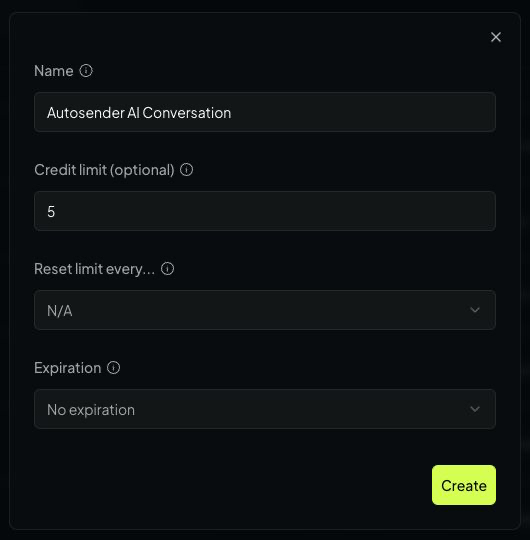
A dedicated name and a small optional credit limit make the Autosender key easier to identify and control.
Click Create, then copy the secret when OpenRouter displays it. Store it somewhere private until you paste it into Autosender. Do not put the key in your campaign prompt, a Discord message, a screenshot, or a support request. If it is ever exposed, revoke it on the OpenRouter keys page and create a replacement.
2. Find a model on OpenRouter
Go to the OpenRouter Models page. Search by model or provider name, then compare the current model cards.
For a Discord DM assistant, prioritize:
- Support for text input and text output
- Low enough latency for a conversation
- A price that fits your expected DM volume
- Enough context for the conversation you plan to support
- An active model that is suitable for following short instructions
Pricing and model availability can change, so use the current information on OpenRouter instead of relying on an old price list.
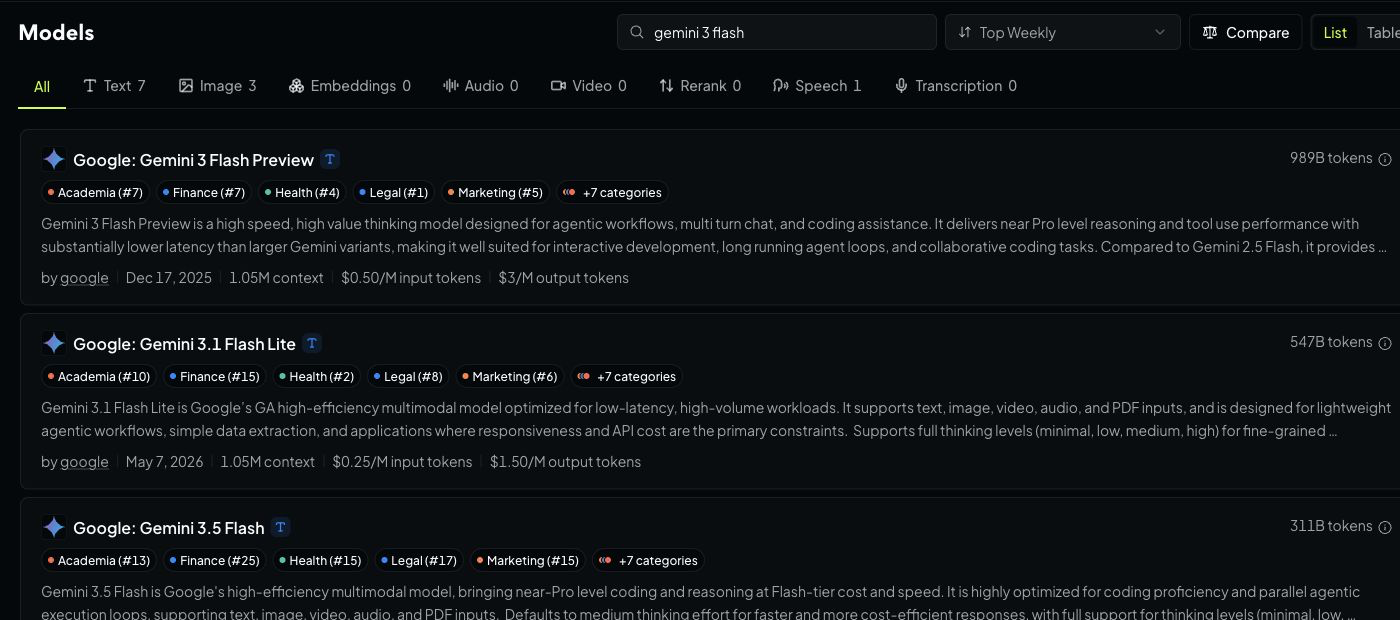
Search the live catalog and compare the information shown on each model card before choosing one.
Open the model's detail page and copy the exact ID shown beneath its name. OpenRouter IDs use the format provider/model, and Autosender needs the complete value. For example, Autosender currently starts with:
google/gemini-3-flash-preview
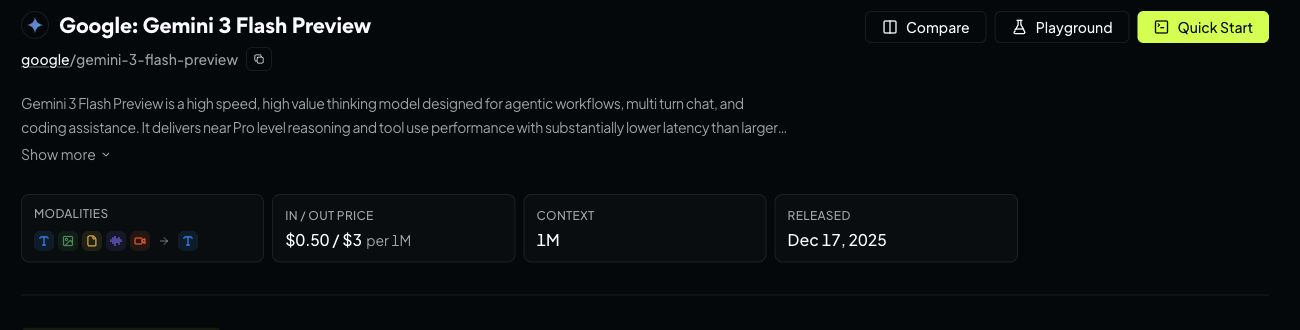
Copy the path-like model ID beside the model name—not only the friendly display name.
If you choose a different model, use the ID from that model's own detail page. A missing provider prefix, extra space, or outdated model name can prevent replies from being generated.
3. Enable AI Conversation in Autosender
Return to the Autosender Dashboard. Click Create Campaign, or edit the campaign that should handle the DMs. Confirm the correct Discord account is selected and finish the campaign's normal message, schedule, and target-channel settings.
At the bottom of the editor:
- Expand Advanced Settings.
- Find AI Conversation.
- Turn on the switch.
- Confirm that the Prompt, Stop Condition, API Key, and Model fields appear.
If Auto-Reply was enabled, Autosender turns it off when AI Conversation is enabled. This prevents a fixed reply sequence and an AI reply from both answering the same DM.
4. Write a focused campaign prompt
The Prompt is the complete assignment brief for the conversation. Assume the model knows nothing about your community, offer, process, or preferred way of helping unless you explain it here. A three-line role and tone can be useful for an early test, but it is usually not enough for a reliable real conversation.
Include the context the model will need to make good decisions:
- Who it represents and who it is speaking with
- The purpose of the conversation and what a successful outcome looks like
- Relevant facts about your community, product, service, or process
- The questions it should ask before recommending a next step
- Which channels, resources, or people it should direct someone to
- What it may answer itself and what must be handed to a human
- The desired tone, reply length, and any wording it should avoid
- A few realistic examples when the correct response depends on nuance
A fuller campaign prompt could look like this:
YOU ARE:
A community assistant for the Example Hub Discord. You speak with new
and existing members who DM this account because they need help.

YOUR ASSIGNMENT:
Understand what the person needs, answer questions using the context below,
and guide them to the correct next step. Do not rush to recommend a channel
until you understand their question.

COMMUNITY CONTEXT:
- #start-here contains the onboarding checklist and server rules.
- #support is for technical problems with roles, access, or notifications.
- #general is for normal community discussion, not private account help.
- Only a human moderator can review bans, payments, or private account data.
- Moderators normally reply in #support; do not promise an exact response time.

CONVERSATION FLOW:
1. Answer the person's direct question first when the context supports it.
2. If their request is unclear, ask one short clarifying question.
3. Recommend only the most relevant channel or next step.
4. Explain why that next step will help in one brief sentence.
5. Hand the conversation to a human when it requires moderator access.

TONE AND STYLE:
- Casual, friendly, and natural for Discord.
- Keep each reply to one or two short sentences.
- Do not invent policies, links, wait times, or account information.
- Never ask for passwords, payment details, tokens, or recovery codes.
Treat this as a starting point, then experiment with realistic DMs. Add missing facts or decision rules whenever the model has to guess. Remove context only when it is irrelevant, outdated, or makes the instructions contradictory. In general, specific and well-organized context produces better replies than a short generic prompt.
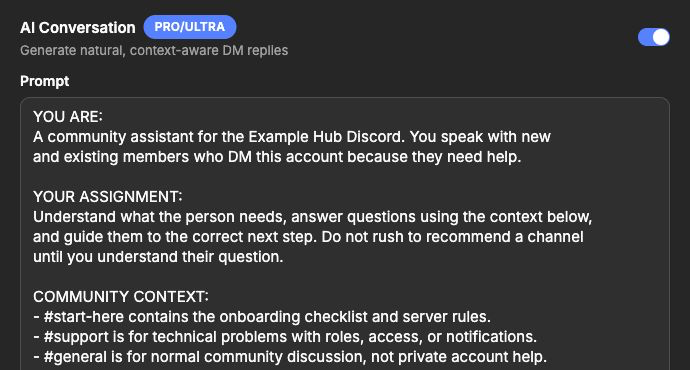
The assignment prompt gives the AI a role, a clear job, and the community context it needs to make useful decisions.
5. Define when the conversation must stop
The Stop Condition prevents the AI from continuing after the conversation has served its purpose. Cover three kinds of exit:
- Success: The person got the answer, completed the step, or said thanks.
- Refusal: The person said stop, no, or that they are not interested.
- Human needed: The question requires private account access, a moderator decision, payment help, or another action the AI cannot safely perform.
For example:
[STOP_CONVERSATION] when:
1. SUCCESS: The person got the answer, completed the step, or says thanks.
2. REFUSAL: The person asks to stop, says no, or is not interested.
3. HUMAN NEEDED: The request requires a moderator, payment help,
   private account access, or sensitive information.
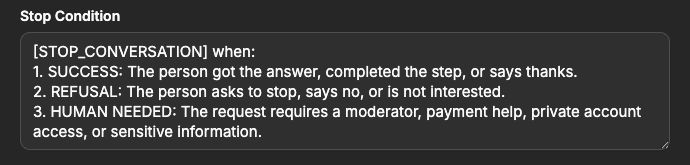
The Stop Condition ends the AI exchange after success, refusal, or a situation that must be handled by a human.
6. Paste the API key and model ID
Paste the OpenRouter secret into API Key. Autosender masks the value in the editor, but you should still treat it like a password.
Paste the exact OpenRouter model ID into Model. The default is google/gemini-3-flash-preview; replace it only when you intentionally selected another model from the current OpenRouter catalog.
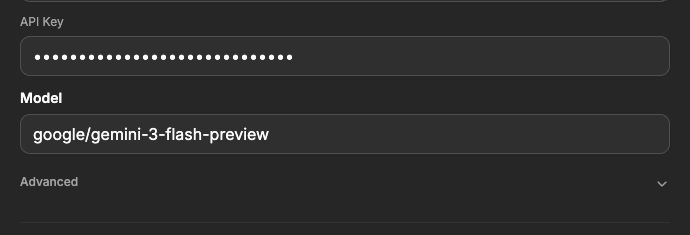
The key in this example is deliberately fake and masked. Paste your own OpenRouter secret and never share it.
7. Configure the advanced conversation controls
Expand Advanced directly below the Model field. These controls change the timing, style, and multi-account behavior of the AI replies.
Initial Message Delay
This is the pause before the first AI reply. The default is one minute, and Autosender requires at least ten seconds. A small delay can make the response feel less abrupt, while a longer delay gives a person time to add context before the AI answers.
System Prompt
The System Prompt sets response-wide rules. Use it for behavior that should apply throughout the exchange, while the campaign Prompt remains focused on the job and goal.
For example:
Keep every reply to one or two short sentences.
Answer the person's question first.
Never ask for passwords, payment details, or recovery codes.
If a human is needed, say so and stop.
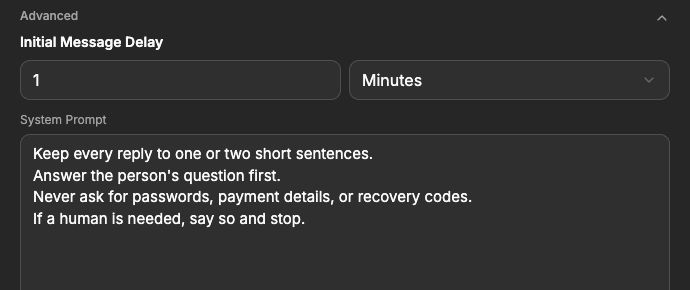
Keep the System Prompt short enough to review. Put the campaign's purpose in Prompt and reusable conversation rules here.
Single Responder
Enable Single Responder when several connected Discord accounts could DM the same person. Once one account has a DM chat with that person, the other participating accounts will not also reply.
The optional Group field lets several campaigns share that boundary. Give the relevant campaigns the same group name, such as community-support, when they should coordinate as one responder pool.
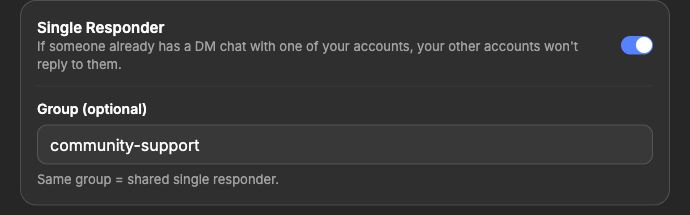
Campaigns with the same group can share one Single Responder boundary across their connected accounts.
Prompt, Stop Condition, and System Prompt are different
These fields work together, but each has a separate job:
- Prompt: The role, goal, campaign context, and tone for this assistant.
- Stop Condition: The events that end the AI exchange.
- System Prompt: Conversation-wide style and safety rules, such as reply length and prohibited requests.
If the AI gives generic answers, improve the Prompt. If it keeps talking after the goal is complete, make the Stop Condition more explicit. If every response is too long or inconsistent, tighten the System Prompt.
8. Save, start, and test the campaign
Review the whole campaign before saving, not only the AI section:
- The intended Discord account is selected.
- The normal campaign message, schedule, and target channels are correct.
- AI Conversation is enabled and Auto-Reply is off.
- The Prompt describes one clear job.
- The Stop Condition covers success, refusal, and human handoff.
- The OpenRouter key is current and has an appropriate limit.
- The model ID exactly matches an active OpenRouter model.
- The initial delay, System Prompt, and Single Responder settings are intentional.
Click Create Campaign for a new campaign or Save Changes when editing. Return to the dashboard and start the campaign.
Test with a controlled Discord account before using the setup with real conversations. Send a normal question, a follow-up, a request to stop, and a question that should be handed to a human. Check the response quality and your OpenRouter usage, then adjust one field at a time.
Troubleshooting
AI Conversation is unavailable
The feature requires a Pro or Ultra plan. Check the badge beside AI Conversation and confirm the current subscription supports it.
A running campaign does not reply to DMs
Confirm that AI Conversation is still enabled, the intended Discord account is connected, and the campaign is running. Check that no other listener-style campaign is already using that account. Only one campaign per account can use features such as AI Conversation, Auto-Reply, or Auto-Accept Friend Requests at the same time.
OpenRouter rejects the API key
Copy the key again without spaces before or after it. Then check the OpenRouter keys page to make sure the key has not expired, reached its credit limit, or been revoked. Create a replacement if the secret may have been exposed.
The model returns an error
Open the model's current OpenRouter detail page and copy the exact provider/model ID again. Also check that the model is still active and that your OpenRouter account can use it.
Replies are too long or sound unnatural
Put the desired tone and task in Prompt, then use System Prompt to enforce one or two short sentences and require the AI to answer the person's question first. Test a few realistic DMs instead of judging the result from one message.
The conversation does not stop
Rewrite the Stop Condition with explicit success, refusal, and human-handoff examples. Include [STOP_CONVERSATION] in the instruction and test each exit path separately.
More than one connected account replies
Enable Single Responder. If several campaigns should coordinate, give them the same optional group name.
Final checklist
Before sharing the setup with your community, confirm all ten items:
- The correct Discord account and campaign are selected.
- The campaign is on a Pro or Ultra plan.
- The OpenRouter key is private, active, and appropriately limited.
- The Model field contains the exact current
provider/modelID. - The Prompt defines one clear role and goal.
- The Stop Condition covers success, refusal, and human handoff.
- The System Prompt keeps replies brief and safe.
- The initial message delay feels appropriate.
- Single Responder is configured when multiple accounts could overlap.
- A controlled test passed before the campaign was started for real use.
Once those checks pass, start small, review the first conversations and OpenRouter usage, and refine the instructions from real questions people ask.