How to automatically join Discord servers
Learn how Autosender Server Join works, how to pair Discord invites with connected accounts, monitor every attempt, and handle CAPTCHA or rate-limit results.
Опубликовано 15 июля 2026 г.
Joining the same set of Discord servers with several connected accounts can become repetitive. Autosender's Server Join tool turns that work into one queued run: add the invite links or codes, select the accounts that should use them, and review the result of every account-and-invite combination from the same dialog.
Server Join is separate from an Autosender campaign. It runs once when you start it, does not post messages, and does not repeat on a schedule.
This guide explains where to find Server Join, how its attempt counter works, how to configure a safe first run, and what each result means.
Before you begin: Only join servers you are allowed to access and only use Discord accounts you own or are authorized to manage. Server Join does not bypass CAPTCHA, verification, invite restrictions, Discord rate limits, or server rules.
What Server Join does
Server Join takes two inputs:
- One or more Discord invite links or invite codes
- One or more valid Discord accounts already connected to Autosender
Autosender creates an attempt for every pairing. If you enter two unique invites and select three accounts, the run contains six attempts:
2 invites × 3 accounts = 6 join attempts
Each attempt receives its own status, server name, and result message. A failed attempt does not hide the successful attempts from the same run.
Availability and requirements
At the time of writing, Server Join is a beta feature available on Pro and Ultra plans. You also need:
- At least one connected Discord account with a Valid status
- An invite that has not expired or reached its usage limit
- An account that is allowed to join the destination server
- A token that can complete the join without a CAPTCHA challenge
Accounts that are disconnected or invalid do not appear as selectable accounts inside Server Join. Reconnect those accounts before building the run.
1. Open Server Join from the dashboard
Open the Autosender Dashboard and find Your Discord Accounts. The Server Join beta panel appears beneath the connected account cards on supported plans.
Click Open to launch the tool. This is the correct entry point even when you want to join with several accounts; you do not open each account card separately.

Server Join is labeled as a beta and reminds you that it only works with captchaless tokens.
2. Add Discord invites
Stay on the Start Run tab and enter the destinations in Invites. You can use:
- A complete link such as
https://discord.gg/example - The invite code by itself, such as
example
Separate entries with a new line, a space, or a comma. The counter beside Invites shows how many unique non-empty entries Autosender detected. Repeating the exact same entry does not create another attempt.
Before continuing, open each invite in a normal Discord session and confirm that it points to the expected server. An expired, revoked, or mistyped invite will fail for every selected account.
Do not paste account tokens into this field. Invite links and token credentials serve completely different purposes.
3. Select the Discord accounts
Under Discord Accounts, select every connected account that should use the invites. You can click accounts individually or use Select All.
The account summary and footer update immediately:
- Accounts selected shows how many valid accounts are included.
- Selected join attempts shows the final invite-by-account total.
- Start joining remains unavailable until at least one invite and one account are selected.
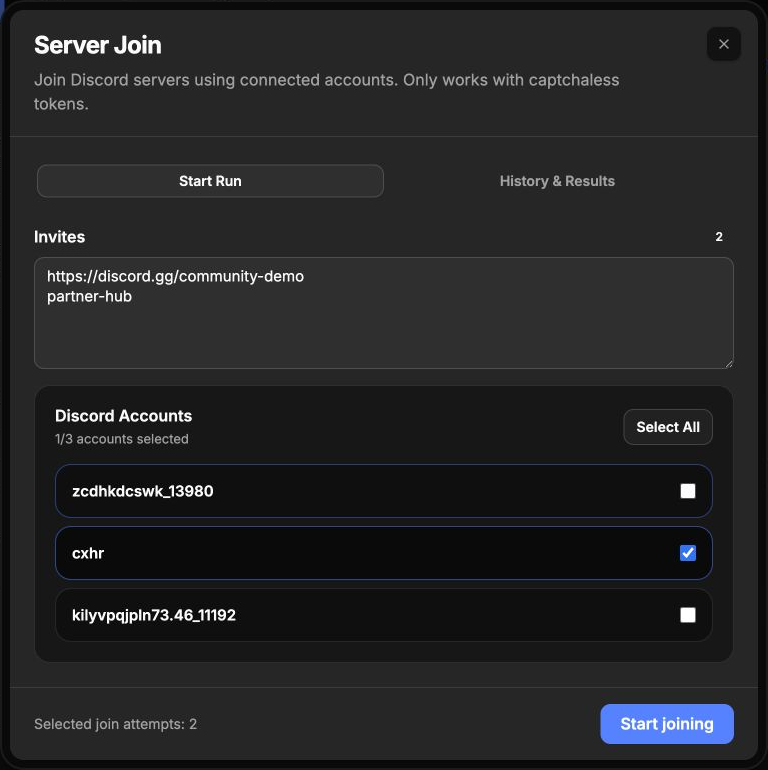
Two invites paired with one selected account produce two attempts. The invite examples in the screenshot are illustrative.
4. Review the attempt count before starting
The attempt count is the most important final check. A small-looking input can expand quickly when several invites and accounts are combined.
For example:
- 1 invite × 1 account = 1 attempt
- 3 invites × 2 accounts = 6 attempts
- 5 invites × 4 accounts = 20 attempts
Start with one invite and one account whenever you are testing a new destination. Confirm the result, then add more accounts gradually. This makes permission, verification, and rate-limit problems much easier to identify.
Also check whether any selected account is already a member. Discord may treat an already-joined account differently from a new member, and the result message is the best place to confirm what happened.
5. Queue the one-time run
Click Start joining after reviewing the inputs. Autosender queues the run, switches to History & Results, and begins updating its progress.
This action is not a recurring schedule:
- It does not become a campaign card.
- It does not repeat automatically.
- It does not send a message after joining.
- Starting another batch requires a new Server Join run.
While a run is queued or processing, leave it in place and use the progress display rather than repeatedly submitting the same inputs. Duplicate submissions can create duplicate account-and-invite attempts.
6. Monitor History & Results
Open the History & Results tab whenever you want to inspect recent runs. Each card shows:
- The run status
- The number of invites and accounts
- Completed attempts compared with total attempts
- Success and failure counts
- The completion time
- A progress bar
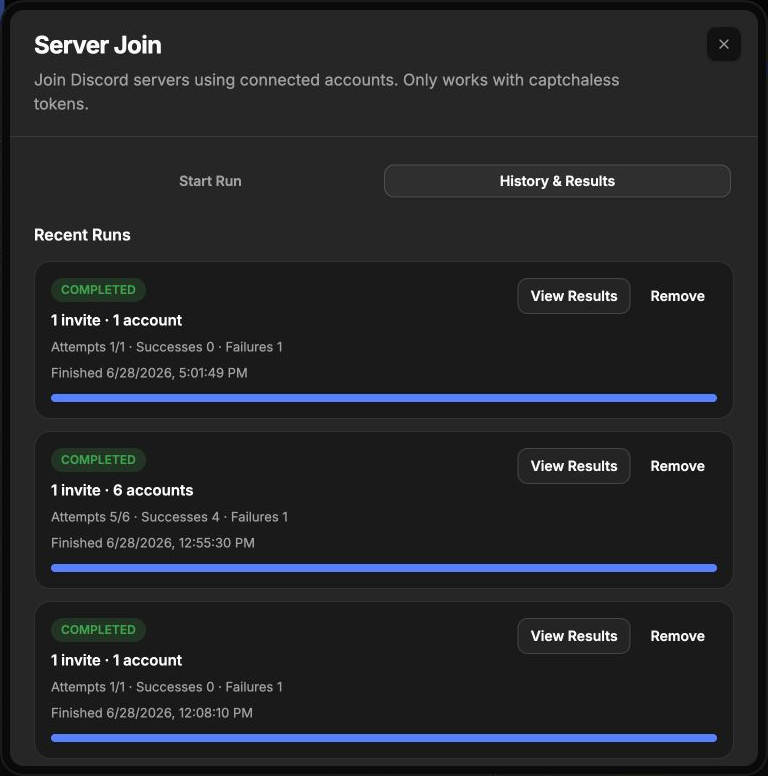
A completed run can contain both successes and failures. Open its results before deciding whether anything needs to be retried.
Use Remove only when you no longer need that history card. Removing a completed run from the list does not leave the servers or reverse successful joins.
7. Read every attempt result
Click View Results on a run to expand its attempt table. Every row connects the relevant pieces:
- Account: the connected account used for the attempt
- Invite: the submitted invite code
- Status: success, failure, rate limiting, CAPTCHA, or verification state
- Server: the server Discord resolved from the invite, when available
- Message: the explanation returned for that attempt
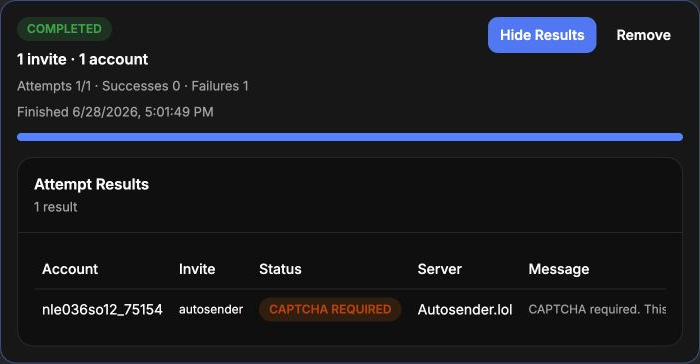
This attempt was skipped because Discord required a CAPTCHA. Server Join reports that condition instead of trying to bypass it.
What each result means
Success
Discord accepted the invite for that account. Verify the membership in Discord before assuming the account can also view or post in every channel; server roles and membership screening still apply.
Failed
Read the message for the specific cause. Common possibilities include an invalid invite, a server membership restriction, an account problem, or a Discord API error. Fix the cause before using Retry.
Rate limited
Discord asked the account to wait. The result can include a retry-after duration. Do not immediately submit a large replacement run; wait for the limit to clear and retry only the affected attempt.
CAPTCHA required
The account was skipped because Discord required a CAPTCHA. Autosender does not bypass that challenge, and CAPTCHA results do not offer an automatic retry button. Complete any required account or join verification through Discord before trying again manually.
Verification required
Discord requires another verification step for the account or server. Complete that requirement in Discord, confirm that the account is valid in Autosender, and then retry the affected pairing.
Retrying an individual attempt
For retryable non-success results, Retry creates a new run containing only that result's account and invite. This is safer than recreating the entire batch because it does not repeat the successful pairings.
Do not use Retry without addressing the original message first. A revoked invite, missing verification, or active rate limit will normally fail again for the same reason.
Successful attempts and CAPTCHA-required attempts are intentionally not shown as retryable in the dialog.
A safe first Server Join run
Use this sequence for a controlled first test:
- Confirm that the destination server allows the account to join.
- Connect one Discord account and verify that Autosender marks it as valid.
- Open Server Join from Your Discord Accounts.
- Enter one working invite.
- Select one account.
- Confirm that Selected join attempts says
1. - Click Start joining once.
- Wait for the history card to finish.
- Open View Results and verify the status, server, and message.
- Add more accounts or invites only after the first pairing succeeds.
Troubleshooting
The Server Join panel is missing
Server Join is shown on supported Pro and Ultra plans. Check the current plan displayed in the dashboard navigation. If you recently upgraded, reload the dashboard before checking again.
Start joining is disabled
The dialog shows the missing requirement. Add at least one invite, select at least one valid connected account, and make sure the plan supports Server Join.
An account is not selectable
Only valid connected accounts are listed. Close Server Join, return to Your Discord Accounts, and reconnect or replace the invalid account.
Every account failed for the same invite
Verify the invite first. It may be mistyped, expired, revoked, or restricted. Testing the same broken invite with more accounts only creates more failed attempts.
The result says CAPTCHA required
Do not keep retrying. The beta feature works only when Discord accepts the token without a CAPTCHA challenge. Use Discord's normal verification flow and follow its rules.
The run completed with fewer attempts than expected
Compare the unique invite count, selected-account count, and attempt total shown before starting. Exact duplicate invite entries are deduplicated, and invalid accounts are not selectable.
Final checklist
Before starting a Server Join run, confirm:
- You are authorized to join every destination server.
- Every invite resolves to the server you expect.
- The selected accounts are valid and under your control.
- The invite and account counts produce the intended number of attempts.
- You understand that this is a one-time run, not a recurring campaign.
- You will inspect individual results instead of retrying the whole batch blindly.
- You will handle CAPTCHA, verification, and rate limits through Discord rather than trying to bypass them.
With those checks complete, Server Join provides a clear workflow: configure the pairings, queue the run once, and use the result table to verify every outcome.