How sequence messages work on autosender.lol
Learn how Autosender sends ordered Discord sequence steps, where each wait applies, how sequences move across target channels, and how to configure and test one.
Publicado em 15 de julho de 2026
Some Discord workflows need more than alternating message variants. An onboarding flow might send a welcome, pause, explain notification roles, pause again, and finish with an invitation to introduce yourself. Those messages must arrive together and in a specific order.
Autosender's Sequence mode is built for that pattern. A sequence contains numbered steps, and every step except the last can have its own Wait after step value. On each scheduled campaign run, Autosender sends the complete sequence to one target channel before moving to the next target on a later run.
This guide explains the exact timing, plan behavior, target-channel order, failure cases, and complete setup for a Message sequence.
Before you begin: Use sequences only in channels where the connected account is allowed to post several related messages. Keep the flow useful, choose reasonable waits, and follow each server's automation and rate-limit rules.
Sequence in one sentence
Sequence mode sends Step 1, waits, sends Step 2, waits, and continues through the final step in one target channel as a single campaign run.
The campaign's normal Delay between runs starts the next full sequence run; it is not the delay between the individual steps.
Sequence is not Rotation
Both modes can store multiple messages, but they use them differently:
- Rotation sends one message to one target on each campaign run, then cycles through the message variants over time.
- Sequence sends every configured step to the selected target during that run, using the per-step waits.
Choose Rotation for “use a different announcement next time.” Choose Sequence for “send these instructions in order now.”
How a sequence moves across target channels
Imagine a three-step sequence with two target channels:
- Step 1 → wait 10 seconds
- Step 2 → wait 1 minute
- Step 3 → sequence complete
- Delay between runs → 12 hours
- Targets → Channel A and Channel B
The successful order is:
- The complete Step 1 → Step 2 → Step 3 sequence runs in Channel A.
- Autosender waits for the campaign's next scheduled run.
- The complete sequence runs in Channel B.
- On the following scheduled run, the target rotation returns to Channel A.
Autosender does not send Step 1 to every target, then Step 2 to every target. It finishes all steps in one destination before a later campaign run moves to the next channel.
Each step counts as a sent message
A successful three-step run adds three sent messages and uses three messages from the daily allowance. With two target channels, one complete pass across both destinations sends six messages.
This also affects Stop After Sending X Messages. A sequence is treated as a complete run, so Autosender can finish all of its steps even when doing so crosses the configured stop-after number.
Budget both the daily message limit and the stop-after setting using:
number of steps × number of sequence runs
Plan behavior and step limits
The message limit shown in the editor also controls the maximum sequence length. At the time of writing:
- Free: 1 message, with Sequence unavailable
- Plus: up to 3 steps
- Pro: up to 6 steps
- Ultra: up to 8 steps
Plus can run a sequence, but custom per-step timing is treated as an advanced capability and is not preserved in the active campaign. Pro and Ultra keep the configured step waits and also support per-message auto-delete timers.
Check the limit displayed beside Step 1 before building the flow, especially if subscription features change later. Each individual step can contain up to 2,000 characters.
1. Create a Message campaign and select Sequence
Open the Autosender Dashboard, find Autosender Campaigns, and click Create Campaign. Complete the top fields:
- Enter a descriptive internal campaign name.
- Select the connected Discord account.
- Choose Message under Delivery Mode.
- Select Sequence under Message Content.
- Write Step 1.
The editor changes its labels from Message 1 to Step 1 and shows the maximum number of steps for the current plan.
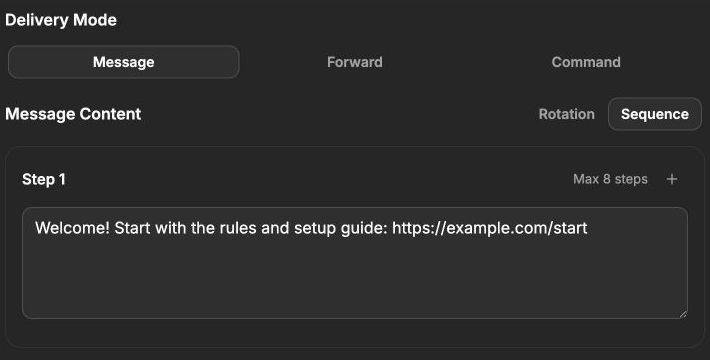
A one-step sequence has no internal wait because there is no next step yet. Use the plus button to add Step 2.
If the Sequence tab is disabled, the current plan supports only one message. Upgrade to a plan with more than one message entry before continuing.
2. Add Step 2 and set the first wait
Click the plus button beside the step limit. Step 2 appears, and Step 1 gains a Wait after step control.
This wait belongs to Step 1. Autosender sends Step 1 first, pauses for the selected amount of time, and then sends Step 2.
Enter the number on the left and choose Seconds, Minutes, or Hours on the right. A value of zero sends the next step without an intentional pause.
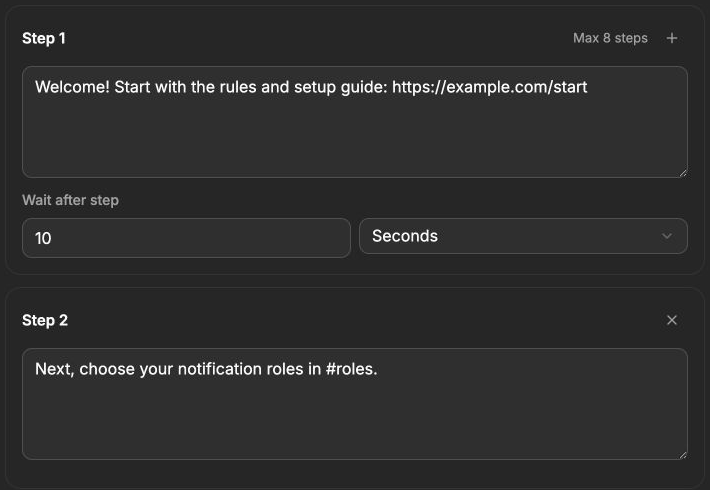
In this example, Step 2 is sent ten seconds after Step 1 succeeds.
3. Continue adding ordered steps
Use the plus button again to add Step 3. Step 2 now receives its own Wait after step control because another message follows it.
Every wait is attached to the step immediately above it:
- The wait beneath Step 1 controls the pause before Step 2.
- The wait beneath Step 2 controls the pause before Step 3.
- The final step has no wait field because the sequence ends after it.
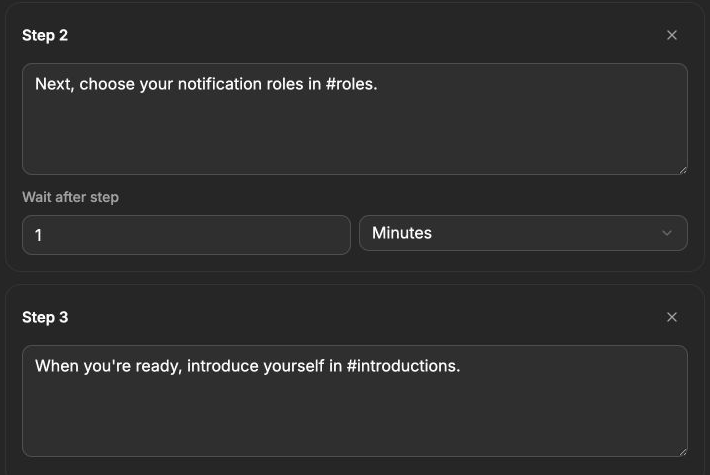
Step 3 is the final message, so the sequence stops after sending it. The one-minute wait applies before Step 3.
4. Write steps that can survive a retry
A sequence is one ordered operation, but Discord still receives separate messages. A network or permission failure in a later step can leave earlier steps visible while preventing the remaining steps from being sent.
If the campaign retries later, those earlier steps may be sent again. Design the flow so a repeated welcome or instruction is understandable rather than destructive.
Good sequence steps:
- Clearly state what the member should do next.
- Avoid irreversible moderation or financial actions.
- Do not depend on a temporary link that will expire before the next run.
- Make sense when viewed with the steps immediately before and after them.
- Avoid unnecessary mentions in every step.
For a first test, keep the combined internal waits short. A sequence stays active while it pauses between steps, so long waits increase the chance that a network session, permission, or channel state changes before the final step.
5. Keep the run interval separate from step waits
After the final step, the sequence run is complete. Delay between runs controls when Autosender starts the full sequence again in the next target channel.
Use the two timing layers deliberately:
- Wait after step spaces messages inside one sequence.
- Delay between runs spaces complete sequence runs.
The main interval should normally be longer than the total internal wait time. If Step 1 waits ten seconds and Step 2 waits one minute, the sequence itself takes at least 70 seconds plus message-delivery time. A 12-hour run interval leaves a clear separation between complete onboarding flows.
Daily send windows control when a sequence run may begin. Once a run has started, its remaining steps belong to that operation; do not use a window boundary as the only way to stop a partially completed flow.
6. Add target channels
Paste one Discord channel ID per line into Target Channels. The first sequence run uses the first target, the next scheduled run uses the next target, and the channel list cycles after its final entry.
Before saving, make sure the account can send every step in every destination. A sequence that is acceptable in a quiet onboarding channel may be too intrusive in a busy general channel.
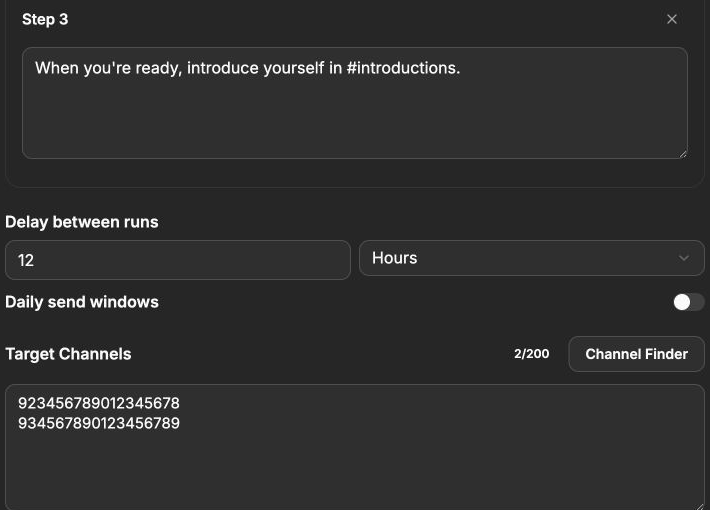
The example sequence runs every 12 hours and alternates the complete three-step flow between two destinations. The IDs are fictional.
What happens with a forum target
When a normal Message campaign targets a Discord forum channel, Autosender creates a forum post instead of placing a loose message in the forum feed.
For Sequence mode:
- The campaign name becomes the forum-thread title.
- Step 1 becomes the starter content.
- Later steps are sent as replies inside that new thread after their configured waits.
Choose a campaign name that also works as a forum-post title if any target is a forum. Test with one controlled forum before mixing forum and text-channel destinations.
Optional Advanced Settings for sequences
Sequence campaigns can use the same Advanced Settings as other Message campaigns. The most relevant are:
- Auto-Delete Sent Messages on Pro and Ultra assigns a separate deletion timer to each numbered message position.
- Message Jitter adds extra time to the delay between complete campaign runs, not between internal steps.
- Start Delay postpones the first complete sequence after the campaign starts.
- Adaptive Rate Limit Protection can extend the campaign interval after rate limiting.
- Stop After Sending X Messages counts the individual steps that were sent, while still allowing an active sequence to finish.
Review these settings after the step order is final. Adding or removing a step changes the numbered positions used by per-message deletion timers.
7. Create, start, and test the sequence
Review the form and click Create Campaign. Return to the dashboard and click Start Campaign on the new card.
Use a controlled first run:
- Start with two steps and one test channel.
- Use a short but reasonable wait after Step 1.
- Confirm Step 1 appears exactly once.
- Measure the time until Step 2.
- Check the campaign's sent and failed counts.
- Add Step 3 only after the two-step test is correct.
- Add the remaining target channels last.
For a three-step test, the Messages Sent value should increase by three after a completely successful run. Stop the campaign immediately if the order, content, or timing is wrong.
Editing and restarting a sequence
Stop the campaign before changing step content, order, waits, or target channels. An in-progress sequence should be allowed to finish or be inspected before its configuration changes.
Stopping and restarting preserves the campaign's channel position. The next run may use the next target rather than beginning again with the first channel. If a fresh target cycle is required, use Duplicate on the campaign card; the duplicate copies the configuration but starts stopped with fresh send counters.
Troubleshooting
Sequence cannot be selected
The Free plan supports one message, so the Sequence tab is disabled. Use Plus, Pro, or Ultra for a multi-step campaign.
Steps send immediately with no pause
Check the Wait after step number and unit. Zero means no intentional delay. Also check the plan: custom sequence timing is retained on Pro and Ultra, while Plus runs the sequence without advanced saved waits.
The wait appears under the wrong message
Read it as “wait after the step above this field.” The delay beneath Step 2 occurs after Step 2 and before Step 3.
The final step has no wait control
That is expected. There is no next step to delay. Use Delay between runs to control when the complete sequence begins again.
Only the first steps appear
Check the campaign activity, account connection, channel permissions, slowmode, daily usage, and rate limiting. A later send can fail after earlier messages have already reached Discord.
Earlier steps are duplicated
A previous run may have failed partway through and retried. Stop the campaign, inspect the channel and activity log, fix the failing step or permission, and then perform another controlled run.
The next sequence starts sooner than expected
Add together all internal waits and compare them with Delay between runs. Keep the run interval comfortably longer than the sequence duration, then check jitter, daily windows, and any recent edits.
A forum sequence has the wrong title
The campaign name is used as the forum post title. Edit the campaign name before starting another forum run.
Auto-delete uses the wrong step
The advanced deletion rows follow the numbered message positions. Stop the campaign, confirm the current step order, and check the master auto-delete switch plus the timer for that position.
Final checklist
Before relying on a sequence campaign, confirm all eleven items:
- Message delivery and Sequence mode are selected.
- The plan supports the required number of steps.
- Pro or Ultra is active when custom waits must be retained.
- Every step is complete, ordered, and under 2,000 characters.
- Each Wait after step belongs to the message above it.
- The final step correctly has no internal wait.
- The run interval is longer than the expected sequence duration.
- Every target channel permits the complete flow.
- Daily usage accounts for every individual step.
- A one-channel test completed in the correct order and timing.
- You know how partial failures and retries can duplicate earlier steps.
Once that test passes, add longer waits or additional channels one change at a time and monitor the first full cycle across every destination.