How message rotation works on autosender.lol
Learn how Autosender rotates several Discord messages across target channels, how the interval affects the order, and how to configure and test a rotation campaign.
Publié le 15 juillet 2026
Repeating exactly the same Discord post can make a campaign feel stale. Message rotation lets one campaign cycle through several approved versions while keeping a single schedule and target-channel list.
Rotation is the default content mode for an Autosender Message campaign. It sends one message on each scheduled campaign run, moves through the target channels, advances to the next message after the current message has covered those destinations, and starts again after the final variant.
This guide explains that order in detail, then walks through adding messages, choosing the interval and destinations, configuring optional deletion timers, and testing a complete rotation.
Before you begin: Only automate messages where the connected account has permission to post. Every variant must follow the rules of every target channel, and the interval should be conservative enough to avoid disruptive repetition.
Rotation in one sentence
In Rotation mode, Autosender selects one message and one target channel per campaign run. With successful deliveries, it uses the same message across the target-channel list, then advances to the next message and repeats the channel rotation.
After the last message has been used, the cycle returns to Message 1.
Rotation is not the same as Sequence
The two Message Content modes solve different problems:
- Rotation sends one variant per scheduled run. Use it for recurring announcements, listings, reminders, or promotional copy that should alternate over time.
- Sequence sends a group of ordered steps to one target during a run, with a separate wait between those steps. Use it when Message 2 must follow Message 1 as part of the same multi-message flow.
If the campaign should say “Version A this time, Version B next time,” choose Rotation. If it should say “Step 1, wait, Step 2,” choose Sequence.
How messages and channels rotate together
The easiest way to understand the behavior is with an example. Imagine a campaign with:
- Three variants: Message 1, Message 2, and Message 3
- Two destinations: Channel A and Channel B
- A four-hour Delay between runs
Assuming each delivery succeeds, the order is:
- Message 1 → Channel A
- Message 1 → Channel B
- Message 2 → Channel A
- Message 2 → Channel B
- Message 3 → Channel A
- Message 3 → Channel B
- Message 1 → Channel A, starting the cycle again
The four-hour delay applies between each numbered run. Autosender does not send the message to all target channels at the same instant.
This means the length of a complete rotation depends on all three settings:
number of messages × number of target channels × delay between runs
In this example, one full round takes 3 × 2 × 4 hours = 24 hours. Each individual channel receives a new variant every eight hours, because the campaign alternates between two destinations.
Daily send windows, slowmode, rate-limit protection, failures, and jitter can extend the real elapsed time. They do not turn Rotation into a simultaneous batch.
Current message limits by plan
The editor shows the current maximum beside Message 1. At the time of writing, the standard limits are:
- Free: 1 message
- Plus: 3 messages
- Pro: 6 messages
- Ultra: 8 messages
A Free campaign still uses Rotation mode, but one stored message means there is nothing to alternate. The message simply repeats as the campaign moves through its target channels. Check the number shown in your editor in case plan limits change later.
Each message can contain up to 2,000 characters. Shorter variants are usually easier to compare, proofread, and reuse safely.
1. Create a Message campaign
Open the Autosender Dashboard, go to Autosender Campaigns, and click Create Campaign. Complete the top of the form:
- Give the campaign a descriptive internal name.
- Select the connected Discord account that should send it.
- Choose Message under Delivery Mode.
- Leave Rotation selected under Message Content.
- Write the first message.
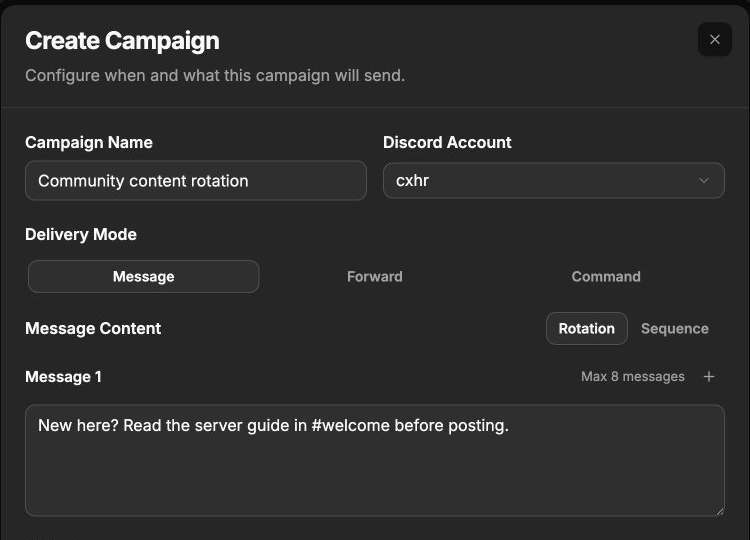
The plus button beside the message limit adds another rotation entry. This Ultra example can contain up to eight.
2. Add the message variants
Click the plus button beside the maximum to add Message 2. Click it again for Message 3, continuing until the campaign has the variants you need or reaches the displayed plan limit.
Write each entry as a complete, standalone Discord message. A rotation variant should still make sense if a member never saw the previous one.
Good rotation variants usually share the same goal while changing the wording or emphasis. For example:
- Message 1 can direct new members to the server guide.
- Message 2 can encourage weekly community participation.
- Message 3 can explain where to request support.
Do not use Rotation for fragments such as “Part 1” and “Part 2” that depend on each other. Those belong in Sequence mode.
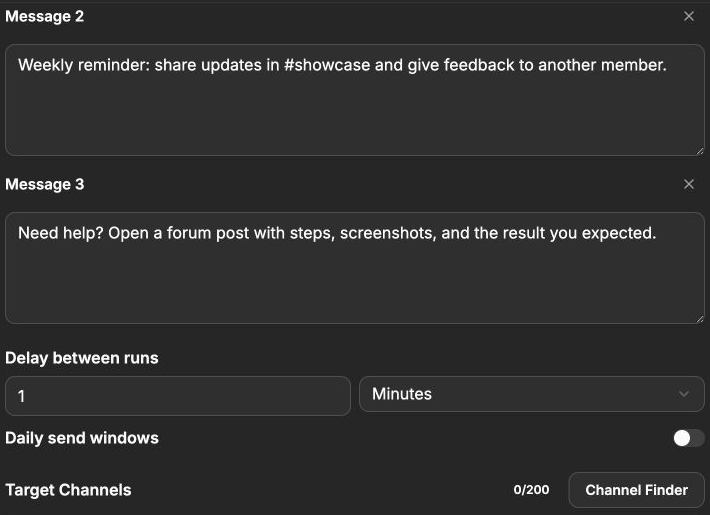
Every added row is numbered. The X controls reduce the message list; review the remaining numbers and text after removing an entry.
3. Keep the message order intentional
Autosender reads non-empty rotation messages in their numbered order. Message 1 comes first, followed by Message 2, Message 3, and so on.
Before saving:
- Remove blank extra rows.
- Check links, channel mentions, role mentions, and formatting in every variant.
- Make sure no message contains an unfinished placeholder.
- Put time-sensitive versions in an order that will still be correct when they are eventually reached.
- Confirm every variant is appropriate for every target channel.
Rotation does not randomly choose a variant. If random order is important, prepare the messages in the order you want Autosender to cycle through them.
4. Choose the interval with the channel count in mind
Set Delay between runs below the message list. Choose Seconds, Minutes, Hours, or Days.
Remember that the delay is between individual campaign runs. If there are five target channels and the interval is one hour, a particular channel normally receives a new message about every five hours, not every hour. A campaign with four messages and five channels takes roughly 20 runs to return to Message 1 in the first channel.
Use Daily send windows when the rotation should pause outside approved hours. The campaign keeps its position and continues when a valid window opens; a daily window does not create a separate message order.
5. Add the target channels
Paste the Discord channel IDs into Target Channels, one ID per line. The campaign rotates through these destinations in their configured order while it also works through the messages.
Check that the selected account can view and send messages in every destination. A missing permission or active slowmode can delay the clean example order because Autosender may skip a throttled destination or record a failure.
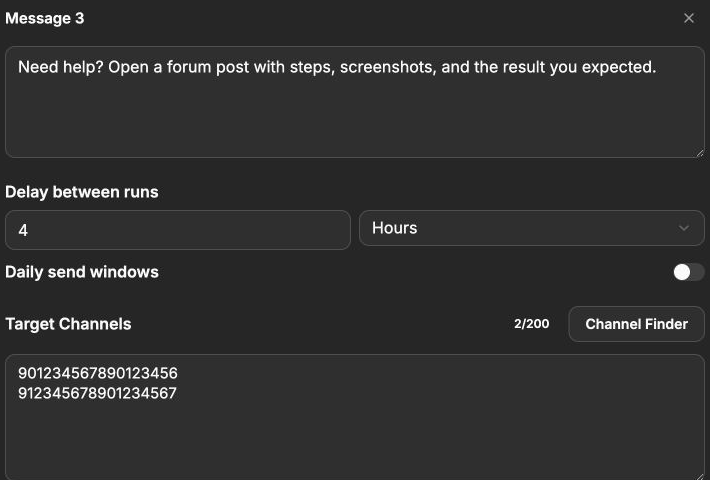
With two target channels, the campaign uses each rotation message twice—once per destination—before advancing to the next message.
The channel IDs shown above are fictional. Replace them with Discord IDs from channels where the account is authorized to post.
6. Optional: set a delete timer for each variant
Pro and Ultra plans can automatically delete sent messages after a chosen delay. This is configured per rotation entry:
- Expand Advanced Settings.
- Enable Auto-Delete Sent Messages.
- Turn deletion on for the specific message that needs it.
- Enter its delay and choose the unit.
- Leave another message off when that variant should remain in the channel.
The deletion settings follow the numbered rotation messages. Message 1 can disappear after 30 minutes while Message 2 remains and Message 3 uses a different timer.
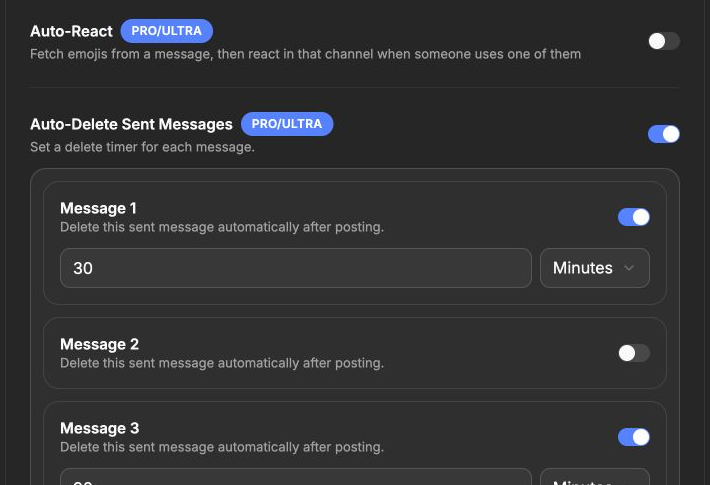
The master switch reveals one deletion control for every rotation message. A message-level switch must also be enabled before its timer applies.
7. Create, start, and observe the first cycle
Review the complete form and click Create Campaign. The new card is saved in a stopped state until you click Start Campaign.
For the first test:
- Use two or three short messages.
- Start with one or two channels you can inspect.
- Choose an interval that is practical to observe but still allowed by the destination.
- Record which message appears in which channel.
- Watch Messages Sent, Failed, and Next Send In on the campaign card.
- Let the campaign reach Message 1 again before expanding it.
With two messages and one channel, two successful runs are enough to see a complete cycle. With three messages and two channels, you need six successful deliveries before the next run returns to the start.
What happens when you stop, restart, or edit
Stopping a campaign pauses sending; it does not necessarily rewind the rotation to Message 1. Starting it again preserves the campaign's accumulated delivery position, so it can continue with the next channel and message.
Editing the number or order of variants changes how that saved position maps onto the current list. For predictable results:
- Stop the campaign before editing.
- Note the last successful message and destination.
- Make the smallest necessary change.
- Restart with a controlled target and observe the next run.
If you need a guaranteed clean cycle beginning at Message 1 and the first target channel, use the campaign card's Duplicate action. The duplicate copies the configuration but starts with fresh send counters in a stopped state.
How other schedule settings affect rotation
Several settings can change timing without changing the intended content order:
- Message Jitter adds up to the selected percentage of extra delay.
- Daily send windows defer runs until an allowed time.
- Adaptive Rate Limit Protection can increase the interval after rate limiting.
- Start Delay postpones only the first send after the campaign starts.
- Channel slowmode can make Autosender skip a temporarily throttled channel and continue checking the rotation.
- Daily usage limits can pause further sends until usage is available again.
When calculating a full cycle, treat messages × channels × interval as the best-case duration before those extra constraints.
Troubleshooting
The plus button is missing
The campaign has reached the message limit for the current plan. The editor displays that maximum beside Message 1. Free supports one message, so an upgrade is required for multiple rotation variants.
Sequence is selected instead
Select Rotation under Message Content. If you leave Sequence selected, Autosender treats the entries as ordered steps within one run and uses the per-step waits.
A channel keeps receiving the same message
Count all target channels and successful sends. Autosender normally uses the same variant across the full target list before advancing, so a larger channel list makes each channel wait longer for the next message.
The order does not match the simple example
Check for failed deliveries, slowmode, recently invalidated channels, edits made during the cycle, and a campaign that was previously stopped and restarted. The simple order assumes a new campaign with successful sends and an unchanged target list.
A removed message still appears
Stop the campaign, reopen its editor, and confirm the current numbered list was saved. Then restart and monitor the next deliveries. Do not rely on text that was visible in an unsaved editor.
Messages are arriving too frequently
Increase Delay between runs and review the number of target channels. Also check daily windows, server rules, and whether several campaigns are posting to the same destination.
Auto-delete does nothing
Auto-delete requires Pro or Ultra. Confirm both the master Auto-Delete Sent Messages switch and the switch for that exact numbered message are on, then check its delay value and unit.
Final checklist
Before relying on a rotation campaign, confirm all ten items:
- Message delivery and Rotation mode are selected.
- The connected account can post in every destination.
- Every variant is complete and under 2,000 characters.
- The message order is intentional.
- The message count is within the displayed plan limit.
- The interval accounts for the number of target channels.
- Every target channel ID appears on its own line.
- Optional daily windows and delete timers are correct.
- A controlled test completed one full cycle.
- You know that stopping and restarting preserves the campaign's position.
Once the small test behaves as expected, add channels or variants gradually and continue monitoring failures so the live rotation stays predictable.