How to auto-reply to Discord forum posts
Learn how to use Forum Auto-Reply in Autosender's Advanced Settings to welcome new Discord forum posts with a custom message and reply delay.
Veröffentlicht am 15. Juli 2026
Discord forum channels are useful for support questions, suggestions, introductions, and other discussions that deserve their own thread. A consistent first reply can welcome the author, explain what information to include, or set expectations before a moderator arrives.
Autosender's Forum Auto-Reply feature watches selected forum channels and replies when a new public forum thread is created. It is configured inside a campaign's Advanced Settings, not as a separate delivery mode.
This guide covers the entire setup: prepare the campaign, find the forum channel IDs, enable Forum Auto-Reply, write the response, choose a delay, and test the result safely.
Before you begin: Auto-reply only in forums where the connected account is allowed to participate. Keep the message useful and relevant, and follow the server's automation, posting, and rate-limit rules.
What Forum Auto-Reply does
Every new post in a Discord forum channel creates a public thread. When Forum Auto-Reply is enabled, Autosender can post one configured reply inside that new thread after the chosen delay.
The feature is designed for new public forum threads. It does not target ordinary text-channel messages, direct messages, or an existing thread merely because someone adds another reply.
Forum Auto-Reply is available on Pro and Ultra plans. One campaign can monitor up to 10 forum channels, and the reply can contain up to 2,000 characters. The reply delay can be anywhere from zero seconds to one hour.
What you need
Have these ready before opening the campaign editor:
- A Pro or Ultra Autosender plan
- A Discord account connected to Autosender
- Permission for that account to view each forum and send messages in its threads
- The parent forum channel ID for every forum you want to monitor
- A short, reusable reply that makes sense for every new post
- A normal Autosender campaign configuration that can be created and started
If Copy Channel ID is missing in Discord, open User Settings, select Advanced, and enable Developer Mode.
1. Set up the campaign normally
Open the Autosender Dashboard and click Create Campaign. Before opening Advanced Settings, complete the normal campaign fields:
- Enter a descriptive campaign name.
- Select the Discord account that should send the forum replies.
- Configure the campaign's message or other delivery mode.
- Choose a sensible interval.
- Add the campaign's normal target channel IDs.
Forum Auto-Reply is an additional behavior attached to this campaign. Its forum channels and reply delay are configured separately from the campaign's regular Target Channels and Delay between runs.
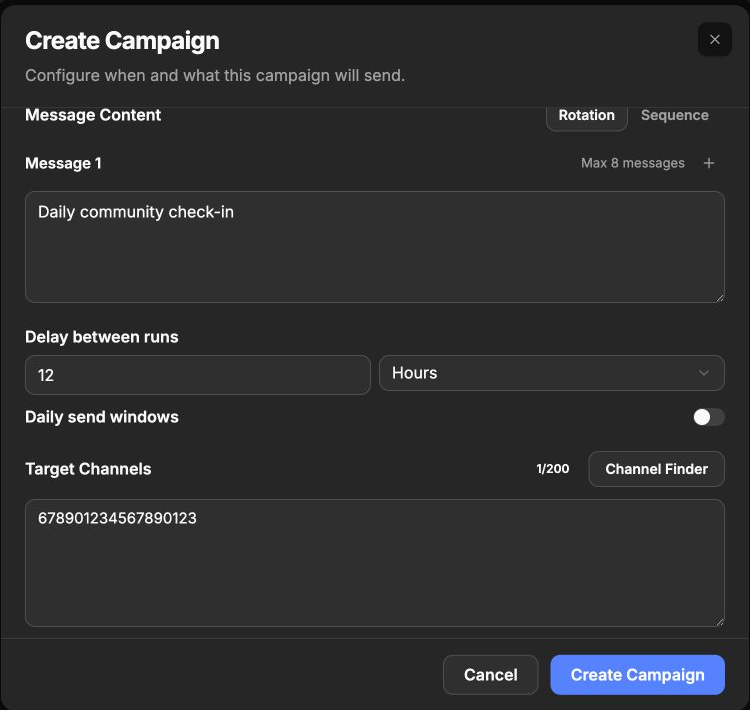
This example uses a normal Message campaign. The message, schedule, and target ID shown here are illustrative and separate from the forum reply settings.
2. Copy the parent forum channel IDs
Open Discord and locate the forum channel itself in the server's channel list. Right-click the forum channel and select Copy Channel ID.
Do not copy the ID of an individual forum post. A forum post is a thread, while Forum Auto-Reply needs the ID of its parent forum so it can detect future posts created there.
Repeat this for every forum the campaign should monitor. Keep the IDs one per line and make a note of which server each one belongs to. Discord IDs are long numbers; paste only the 17-to-20-digit ID, without a channel mention, URL, label, comma, or bullet.
3. Find Forum Auto-Reply in Advanced Settings
Return to the campaign editor, scroll below Target Channels, and expand Advanced Settings. Find Forum Auto-Reply, which appears with a Pro/Ultra badge.
Its description states that it replies automatically when a new public thread is created in a forum channel. This distinction matters: the trigger is creation of a new public forum thread, not every message sent in the forum.
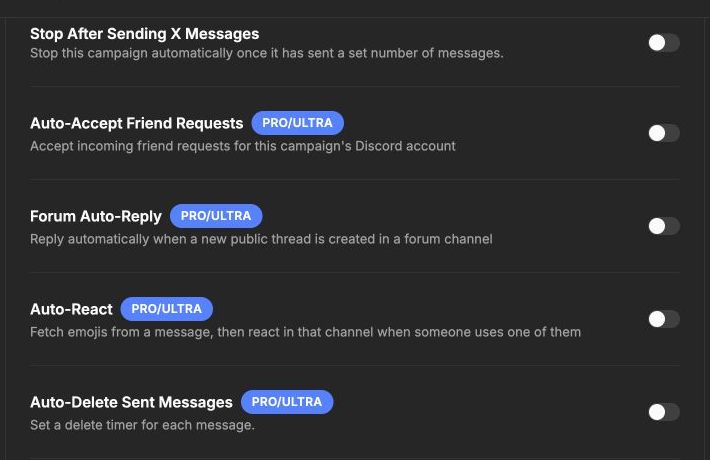
Forum Auto-Reply is independent of the nearby friend-request, reaction, and message-deletion features.
If the switch is disabled, check the current plan. Upgrading to Pro or Ultra is required before the campaign can save and run forum auto-replies.
4. Turn on Forum Auto-Reply
Enable the Forum Auto-Reply switch. Three controls appear beneath it:
- Forum Channel IDs chooses which parent forums to monitor.
- Reply Message contains the text posted in each new forum thread.
- Reply Delay controls how long Autosender waits before sending that reply.
The forum counter starts at 0/10 and updates as valid-looking IDs are entered. Turning on the switch alone is not enough; complete the channel and message fields before creating the campaign.
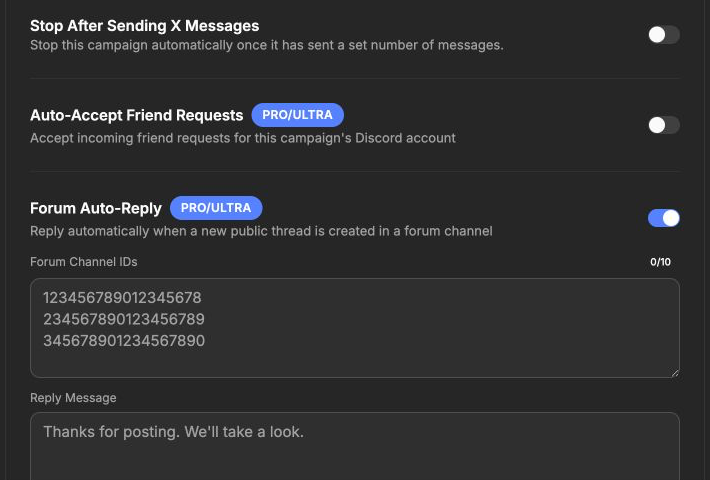
The grey numbers and sentence are placeholders. Replace them with your own forum IDs and reply.
5. Add the forums to monitor
Paste the copied parent forum channel IDs into Forum Channel IDs, with one ID on each line. The maximum is 10 forums per campaign.
Before continuing, check each destination:
- It is a Discord forum channel, not a text channel or an existing thread.
- The connected account can see the forum.
- The account is allowed to view and send messages in newly created forum threads.
- The account has not been blocked by a server verification, membership, or role requirement.
The forum list is separate from the normal Target Channels field above Advanced Settings. Adding a forum here tells Autosender where to watch for new threads; it does not replace the campaign's regular target list.
6. Write one reply that fits every new post
Enter the automatic response in Reply Message. It can be up to 2,000 characters, but a concise reply is usually easier for members to read and less likely to feel repetitive.
A useful forum reply can:
- Welcome the member and confirm that the post was received
- Ask for screenshots, reproduction steps, or an expected result
- Point to a rules or FAQ channel
- Explain when moderators or support staff normally respond
- Remind the author not to share passwords, tokens, or personal information
Avoid pretending that a human has reviewed the post when the reply is automatic. Wording such as “Thanks for posting—please add these details” is clearer than “We have investigated your issue.”

The two IDs in this example are fictional. The 2/10 counter confirms that two forum entries are present.
7. Choose the reply delay
Set Reply Delay to control the pause between creation of a forum post and the automatic response. Enter the number on the left and choose the unit on the right.
- Use 0 seconds when the welcome must appear immediately.
- A short delay, such as 30 to 60 seconds, makes the interaction feel less abrupt and gives Discord time to finish creating the thread.
- Longer delays can be useful when another moderation or support workflow should act first.
The saved delay is capped at 3,600 seconds, which is one hour. If you choose a larger value in another unit, reduce it to one hour or less before relying on the configuration.
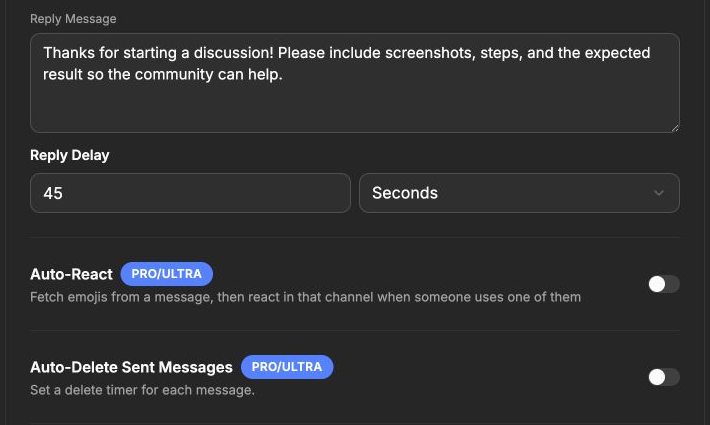
This example waits 45 seconds before posting the configured response in a new public forum thread.
8. Create and start the campaign
Review both the normal campaign configuration and the Advanced Settings, then click Create Campaign. Return to the dashboard and click Start Campaign on the new card.
Forum Auto-Reply belongs to that campaign and uses its selected Discord account. Keep the campaign running for the forum trigger to be handled, and stop it if you need to pause both its regular sends and its forum replies.
During the first test, watch the campaign's failed activity and confirm the response appears only once in the correct new thread. If webhook logging is configured, Forum Auto-Reply Sent can also be selected as a success event for reply activity.
Test Forum Auto-Reply safely
Use a controlled forum before enabling the feature across several servers:
- Start with one forum channel you manage.
- Use a clearly recognizable test reply.
- Create a new public forum post from a different account when possible.
- Wait through the complete Reply Delay.
- Confirm the connected campaign account posts in that new thread.
- Check that the main forum feed, other posts, and ordinary channels do not receive the reply.
- Delete the test post if the server does not need it.
- Add the remaining approved forum IDs only after the test succeeds.
This verifies the trigger, parent forum ID, account permissions, reply text, and delay without affecting every community at once.
Troubleshooting
Forum Auto-Reply is disabled
The feature requires a Pro or Ultra plan. Check the plan badge in Advanced Settings and the subscription shown on the dashboard.
The forum counter stays at zero
Paste the IDs again with one numeric Discord ID per line. Copy the parent forum channel ID with Developer Mode enabled, not a forum-post URL, thread ID, or channel mention.
A new forum post receives no reply
Confirm the campaign is running and the correct Discord account is still connected. Then verify that the new post is a public thread inside one of the configured parent forums and that the account can send messages in that thread.
The reply appears in the wrong place
Recheck the parent forum ID. Remove IDs copied from individual posts or similarly named forums in another server, then test again with only one destination.
The reply arrives later than expected
Review Reply Delay and its unit. A value of 45 Minutes is very different from 45 Seconds. Also allow a small amount of processing time around thread creation.
The reply is sent immediately
A delay of zero means no intentional wait. Enter a positive value and choose the intended unit before saving the campaign again.
Only some forums work
Permissions can differ by server and channel. Check forum visibility, thread messaging permissions, membership screening, account verification, and any role-based restrictions in each failed destination.
Old forum posts do not receive the response
Forum Auto-Reply triggers when a new public forum thread is created. It is not a bulk-reply tool for threads that existed before the campaign was running.
Final checklist
Before relying on Forum Auto-Reply, confirm all ten items:
- The campaign uses a connected Discord account.
- The account can view and reply in every selected forum.
- Forum Auto-Reply is enabled under Advanced Settings.
- The plan is Pro or Ultra.
- Every entry is a parent forum channel ID.
- No more than 10 forum IDs are entered.
- The reply is accurate, transparent, and under 2,000 characters.
- The reply delay is between zero seconds and one hour.
- The campaign is created and running.
- A new-thread test produced exactly one reply in the intended place.
After the controlled test passes, add other approved forum channels gradually and revisit the reply whenever community rules or support instructions change.